
In This Guide
The modem arrives, the internet works, everything on your phone is fine — and then you try to put the printer back on the Wi-Fi. It can't see the network. Or it sees it, joins, and drops off an hour later. Or the setup app gets to 90% and fails with nothing useful on screen.
It's rarely the printer. The Telstra Smart Modem Gen 4 ships with three features enabled that older and simpler devices genuinely cannot cope with. Turning them off takes about ten minutes and doesn't affect your internet speed in any way you'll notice.
We're Geeks Perth, and this has become one of the more common call-outs since the Gen 4 started shipping. Below is exactly what we change, why, and — the part most guides get wrong — the order you have to do it in.
1. What's Actually Going Wrong
Three separate settings, each of which breaks a different kind of device.
Band steering is the big one. Your modem broadcasts on two radio bands — 2.4 GHz, which is slower but travels further and through walls, and 5 GHz, which is faster but shorter-range. Band steering gives both bands the same network name and lets the modem decide which one each device should use.
That's convenient for phones and laptops. It's a disaster for a printer. Most printers, smart plugs, cameras and older TVs can only use 2.4 GHz — they physically have no 5 GHz radio. When there's only one network name, they either can't tell which band they're joining, or the modem tries to move them to 5 GHz and they simply vanish off the network.
Wi-Fi 7 is the newest wireless standard, and the Gen 4 has it on by default. Devices are supposed to negotiate down to whatever they support. In practice a lot of older hardware doesn't manage that negotiation cleanly and either fails to connect or connects unreliably.
LAN IPv6 is the modern addressing scheme running alongside the traditional one. The printer-discovery protocols that let your computer find a printer on the network were largely built for the old scheme, and some of them behave inconsistently when both are active.
If phones and laptops work perfectly and only the "simple" devices struggle, that's this. A genuine internet fault takes everything down at once. A band-steering problem is selective — and it selects exactly the devices that only have a 2.4 GHz radio.
2. Before You Start
- Get onto the modem's network
Wi-Fi or an Ethernet cable, either is fine. You can't reach the settings from mobile data.
- Open the admin page
Type
http://192.168.0.1into a browser. Sign in with the password on the sticker on the modem unless you've changed it. - Change one thing at a time
Apply each change, then re-test the device before moving on. If you change all three at once and it works, you'll never know which one mattered — and you may have given up speed you didn't need to.
Telstra updates the Gen 4's interface periodically, so a label may read slightly differently on your unit. The three things you're looking for are LAN IPv6, Wireless Mode and Band Steering — go by those names rather than the exact menu path if something doesn't match.
3. Step 1 — Turn Off LAN IPv6
Start here, because it's the least disruptive and it's the one that most often fixes "the printer is connected but my computer can't find it".
Settings › LAN

Scroll to LAN / DHCP IPv6 and switch Enable to Off, then Apply.
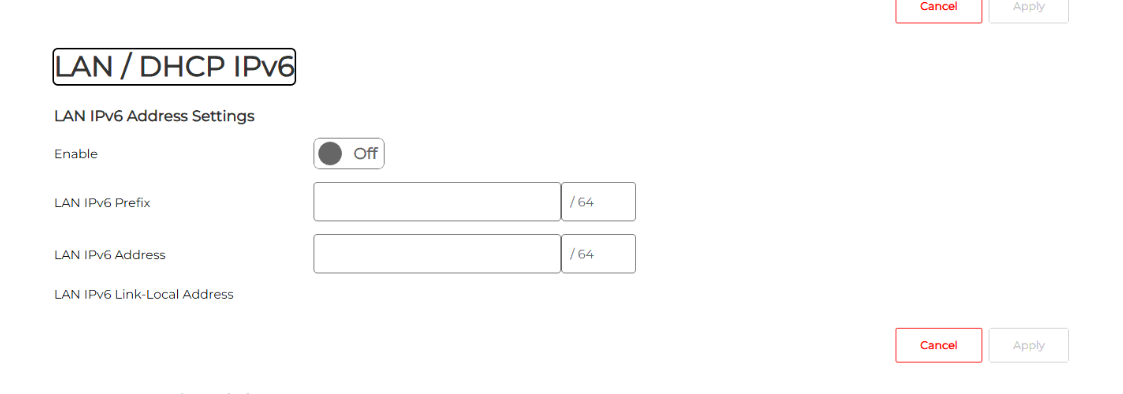
This only affects IPv6 inside your home. Your internet connection is unchanged, every website still works, and nothing about your speed changes. Re-test the device now — if it's working, you can stop here.
4. Step 2 — Drop Wi-Fi 7 Back to Wi-Fi 6
Wi-Fi Settings › Advanced
There's a 2.4 GHz and a 5 GHz tab just under the menu. You need to do this on both. Set Wireless Mode to the Wi-Fi 6 option, then Apply.
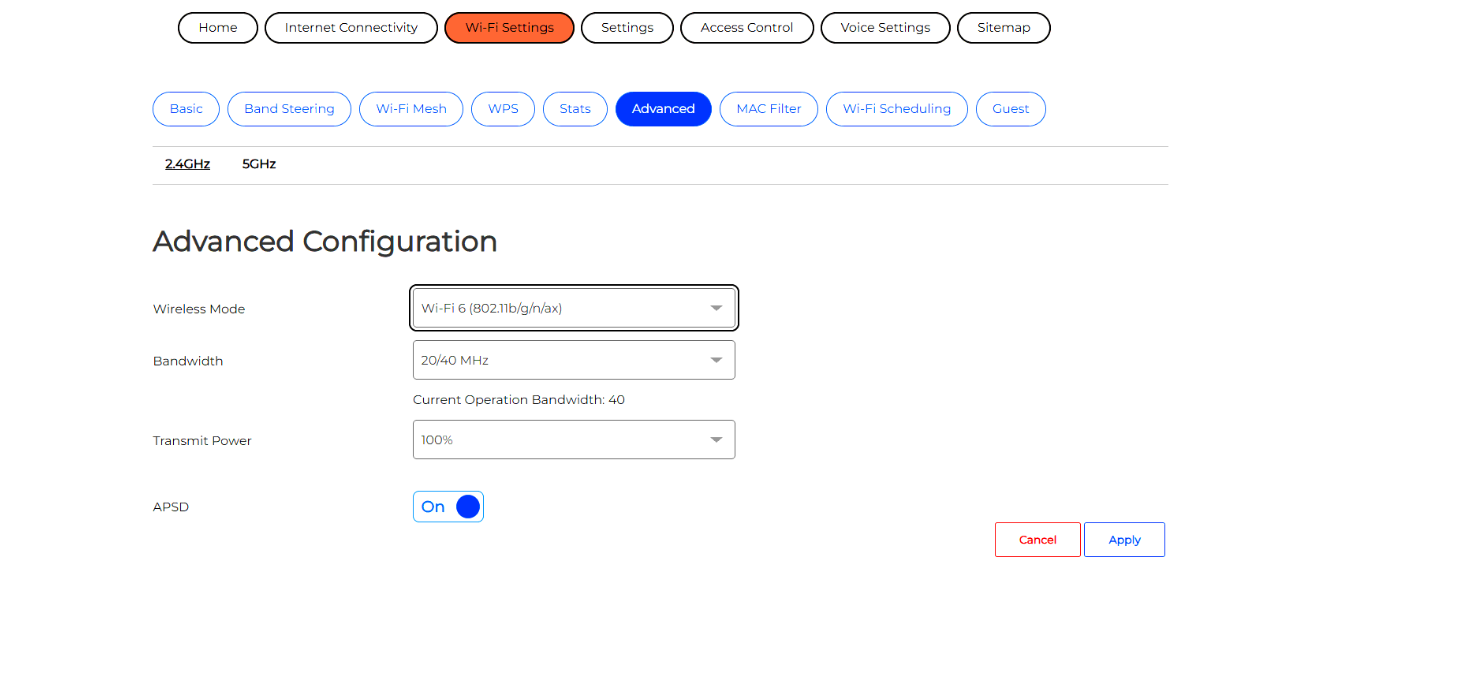
Wi-Fi 6 is still a current, fast standard — this isn't a downgrade to something ancient. Every device made in the last several years supports it, and unless you own a Wi-Fi 7 laptop or phone and a connection fast enough to notice, you will not see a difference.
The modem will not let you change Band Steering while Wi-Fi 7 is enabled. Telstra's own Band Steering page says so in as many words: "When Wi-Fi 7 is enabled BandSteering cannot be switched." If you go straight to Band Steering and find the toggle does nothing, this is why — come back and do Step 2 first. This single dependency is what makes most people give up.
5. Step 3 — Turn Off Band Steering
Wi-Fi Settings › Band Steering
Switch Enable to Off and Apply. This is the change that fixes most printer problems outright.
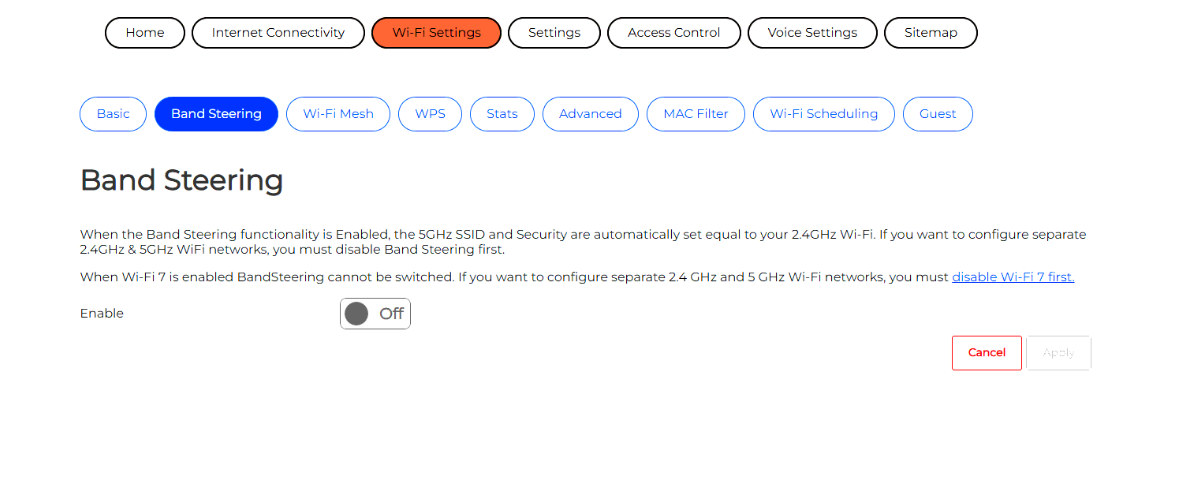
With band steering off, your 2.4 GHz and 5 GHz networks become separate, separately-named networks. You'll now see two entries in the Wi-Fi list on your phone instead of one.
That's the point. You can now join the printer to the 2.4 GHz network deliberately, by name, and it will stay there — instead of the modem shuffling it onto a band it can't use. Put your phones, laptops and TV on the 5 GHz network for speed, and everything simple on 2.4 GHz.
While you're in the Wi-Fi settings, name them something you'll understand later — the default naming is easy to mix up at 9pm with a new printer in front of you. Something like "Smith Home" and "Smith Home 5G" is plenty. Keep the same password on both and rejoining devices stays simple.
Rather Not Poke Around in the Modem?
We do this remotely — settings changed, devices rejoined and a test print done before we hang up.
Book a Tech6. Reconnecting the Device
Changing the modem isn't enough on its own — the device is still holding onto the old network details. Work through this in order.
- Power-cycle the device
Off at the wall for ten seconds, then back on. Not a menu restart — actually remove the power.
- Make it forget the old network
On the printer's screen (or in its app), remove the saved Wi-Fi network, then join the 2.4 GHz one by name.
- Re-run discovery on the computer
Windows: Settings › Bluetooth & devices › Printers & scanners › Add device. Mac: System Settings › Printers & Scanners › Add. Let it find the printer fresh rather than reusing the old entry.
- Print something
An actual test page, not a preview. If it prints, you're done.
If the printer was set up on the previous network, your computer may still hold an entry pointing at an address that no longer exists. It looks correct in the printer list and silently fails to print. Remove the old entry completely and add the printer again.
7. What These Changes Cost You
Worth being straight about, because plenty of guides tell you to change settings without saying what you give up.
- Turning off Wi-Fi 7 — you lose Wi-Fi 7 speeds on devices that support it. In practice almost nothing in an Australian home is Wi-Fi 7 yet, and on a typical NBN connection the internet is the limiting factor, not the Wi-Fi.
- Turning off band steering — you now manage two network names instead of one, and devices won't automatically move to the faster band. Slightly less convenient, considerably more predictable.
- Turning off LAN IPv6 — no practical effect for a home or small office. Your internet connection is untouched.
All three are reversible. If you replace the printer later with something modern, you can turn them back on and see whether everything still behaves — nothing here is permanent, and none of it is a factory reset.
8. Still Not Connecting?
If you've done all three and the device still won't join, the usual causes are:
- The device is too far from the modem. 2.4 GHz reaches further than 5 GHz but it isn't unlimited, and a printer in a garage or a camera at the far end of the house may simply be out of range.
- The password has a character the device can't handle. Some older printers can't cope with certain symbols in a Wi-Fi password. It's worth ruling out.
- The printer's own network hardware has failed. Uncommon, but it happens — a USB cable will tell you in a minute whether the printer works at all.
- There's a second router or extender still broadcasting the old network, and the device keeps rejoining that instead.
This is a remote support job most of the time — we connect to your computer, work through the modem settings with you and get the device back on. Remote support is $125/hr and onsite is $205/hr. If the device needs to be physically moved or the problem turns out to be coverage, onsite is the better call and we'll say so rather than burning remote time on it.
We look after homes and small businesses across Perth — Fremantle, Joondalup, Rockingham, Scarborough and Stirling included. If this is an office setup with several devices and staff waiting on the printer, our business IT support team handles the whole thing, and there's a separate guide to email setup and troubleshooting if that's playing up too. Otherwise just get in touch and tell us what the device is doing.
Device Still Won't Connect?
We'll sort the modem settings and get the printer, TV or camera back on the network properly.
Book a Tech